
Add terms and conditions for quotation to display your business terms
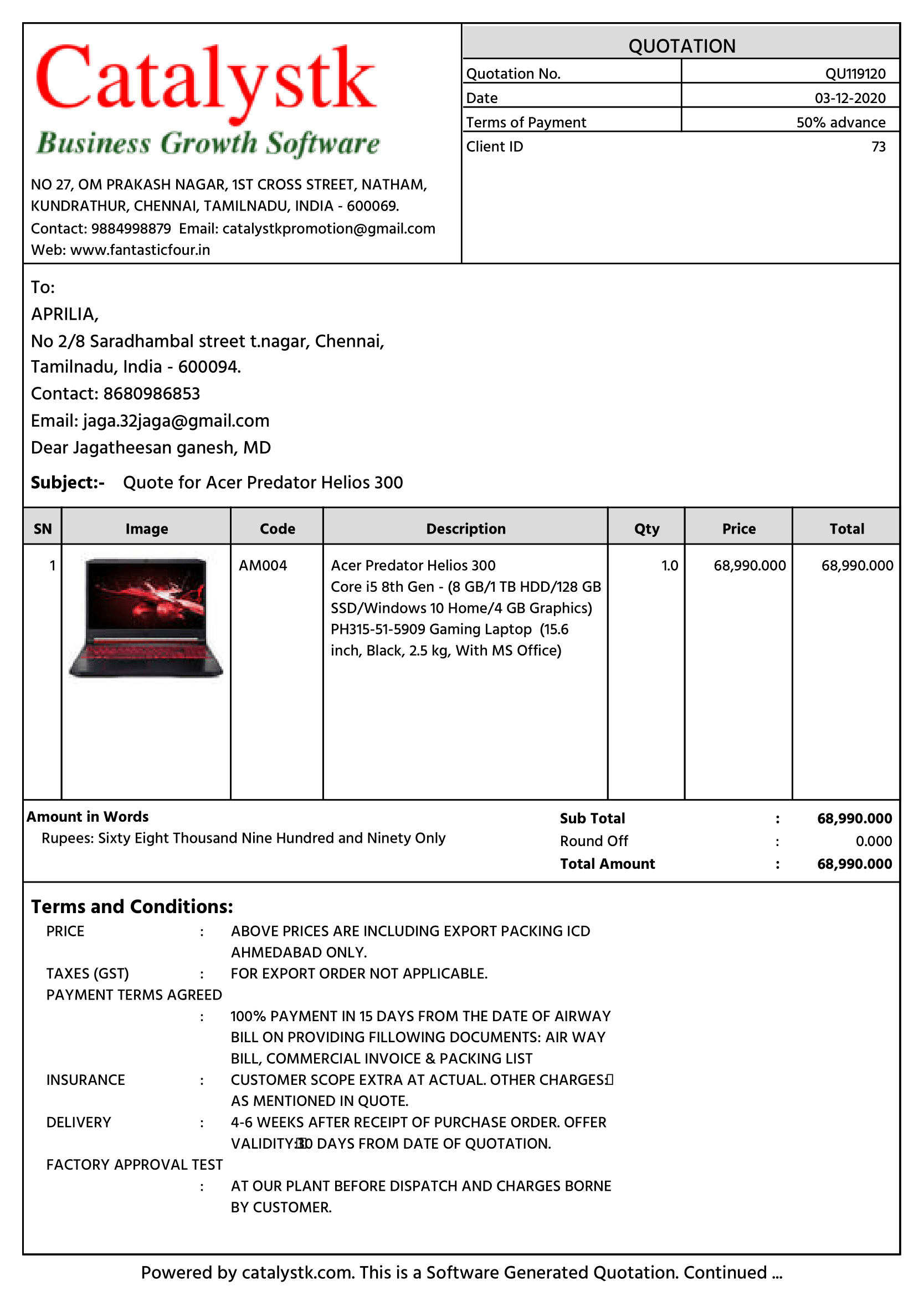
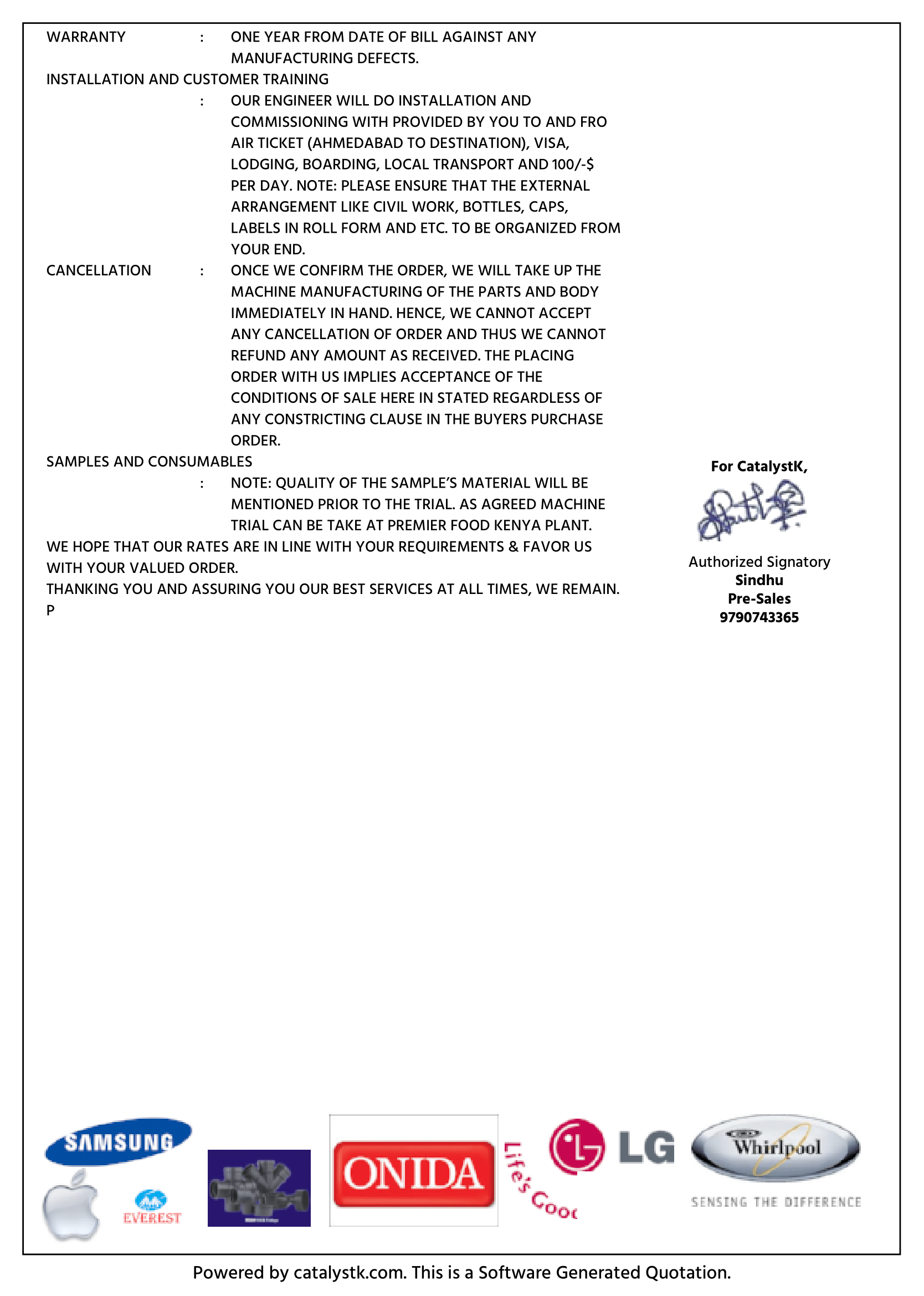
Add terms and conditions for quotation to display your business terms to clients. Basically, terms and conditions for quotation give business owners the chance to set their terms & conditions for quotation rules of how their product or service may be used including, but not limited to, things like copyright simple quotation terms and conditions, and the governing law of the contract. Terms and conditions differ from client to client, and it takes more time make alignment when you put manually from excel or word. Catalystk provides a better solution to add multiple terms condition in one time, and you can select with a single click at anywhere Catalystk add terms and conditions for quotation is integrated with Lifetime free GST billing software, free CRM software, ERP software, AMC or Rental software, Inventory software, Manufacturing software, Artificial Intelligence ( AI ), and 500+reports. It's fully free with all the options. Click the link to register for free.
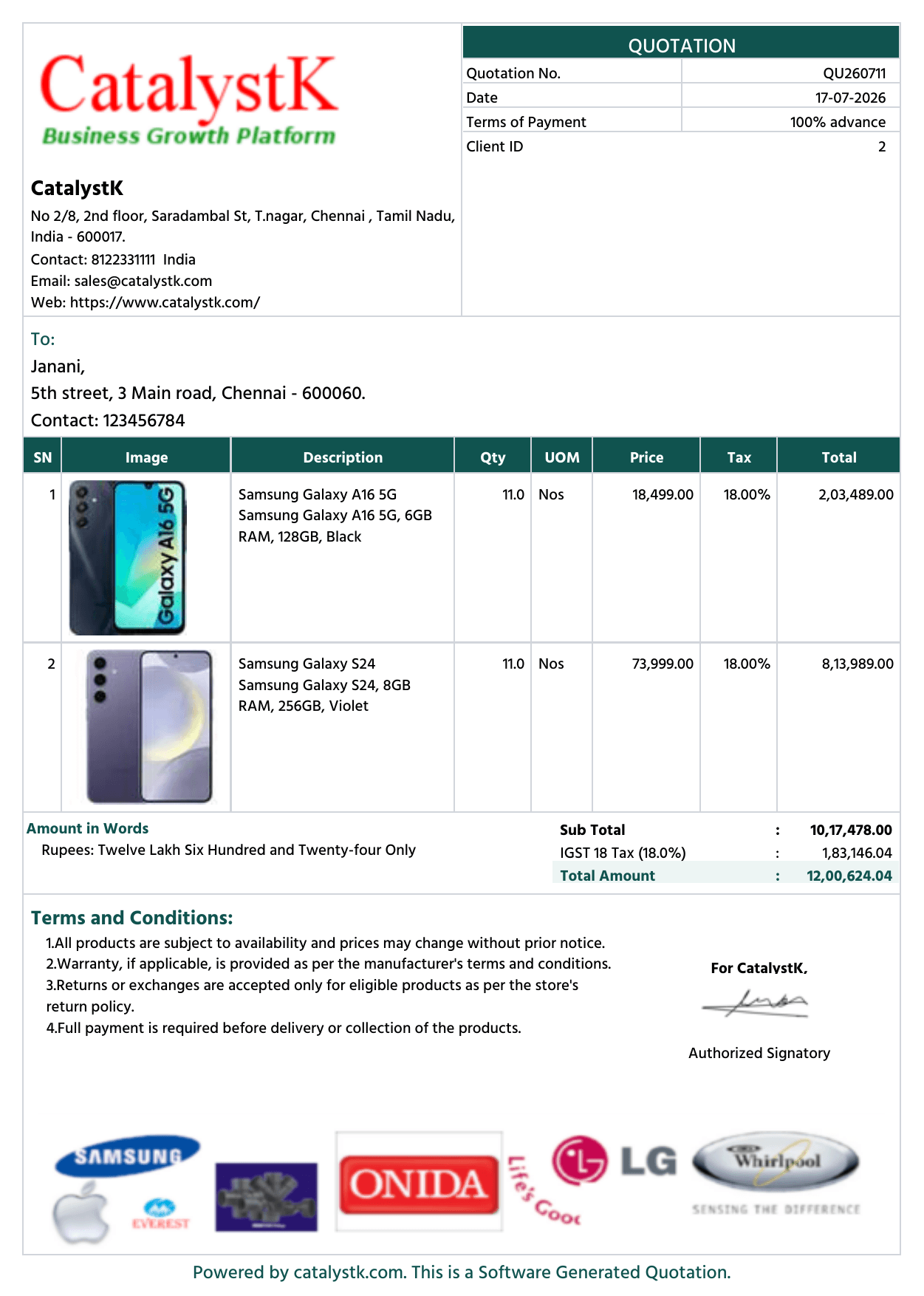
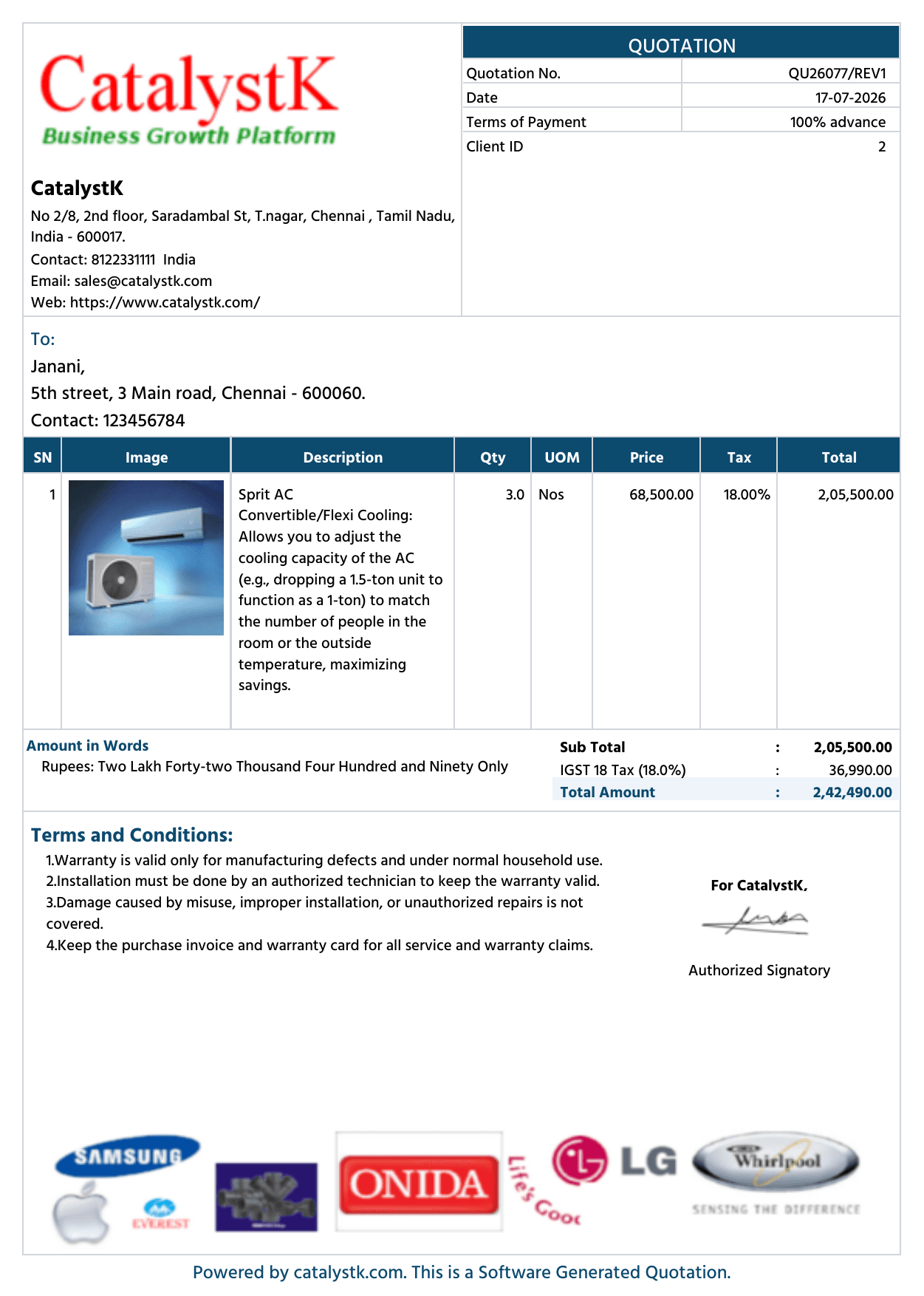
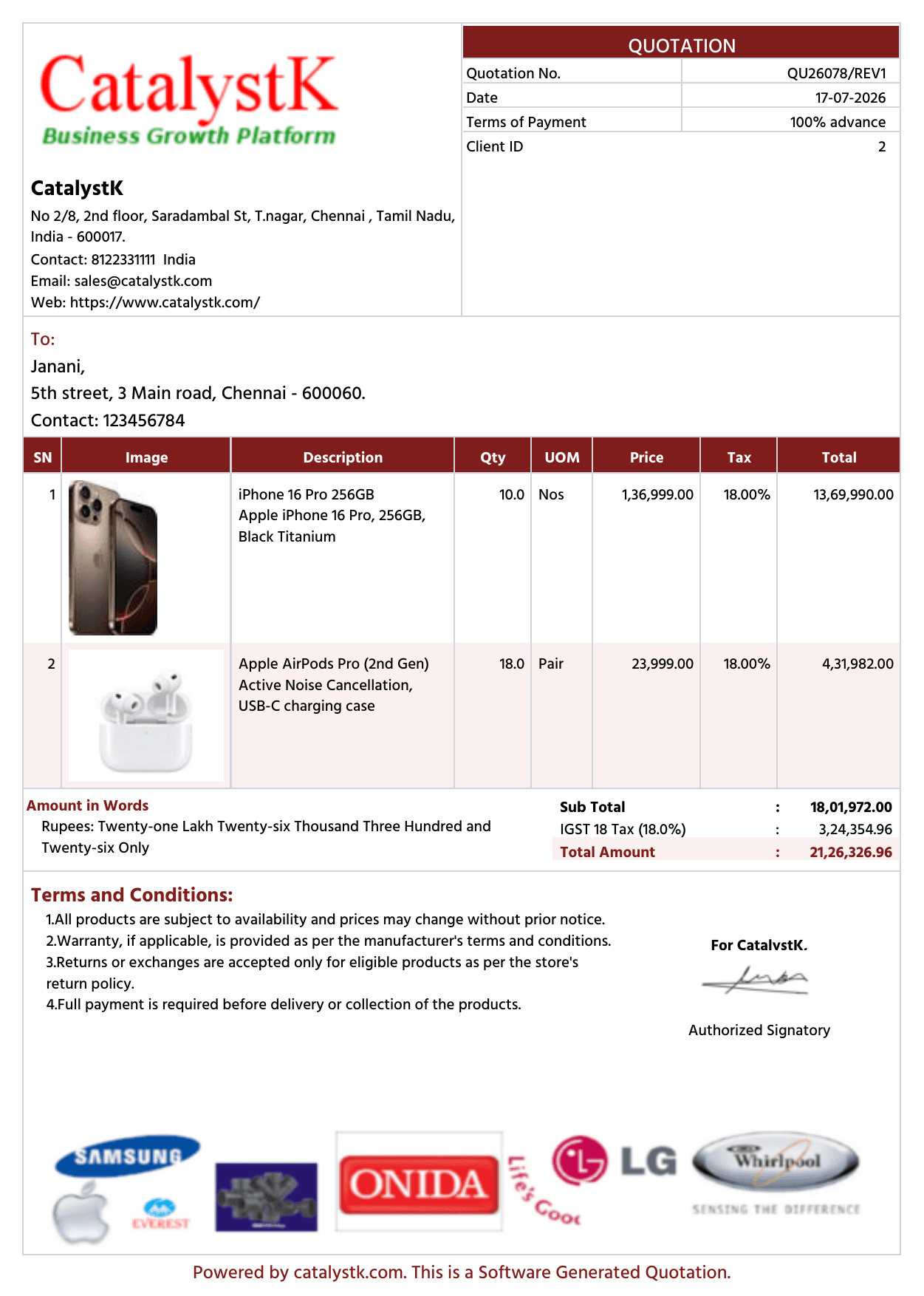
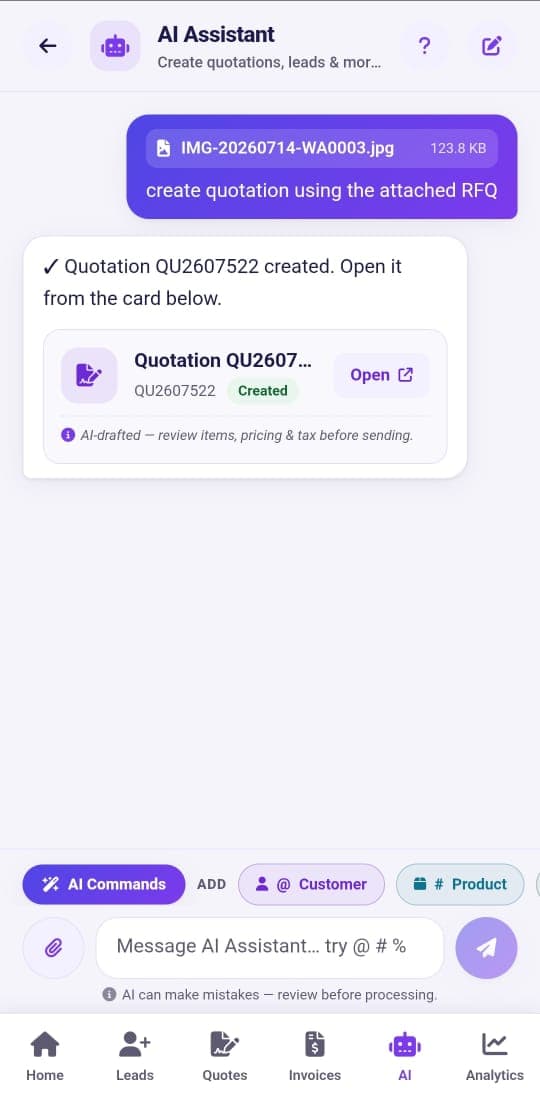
Steps to add terms and conditions in quotation:
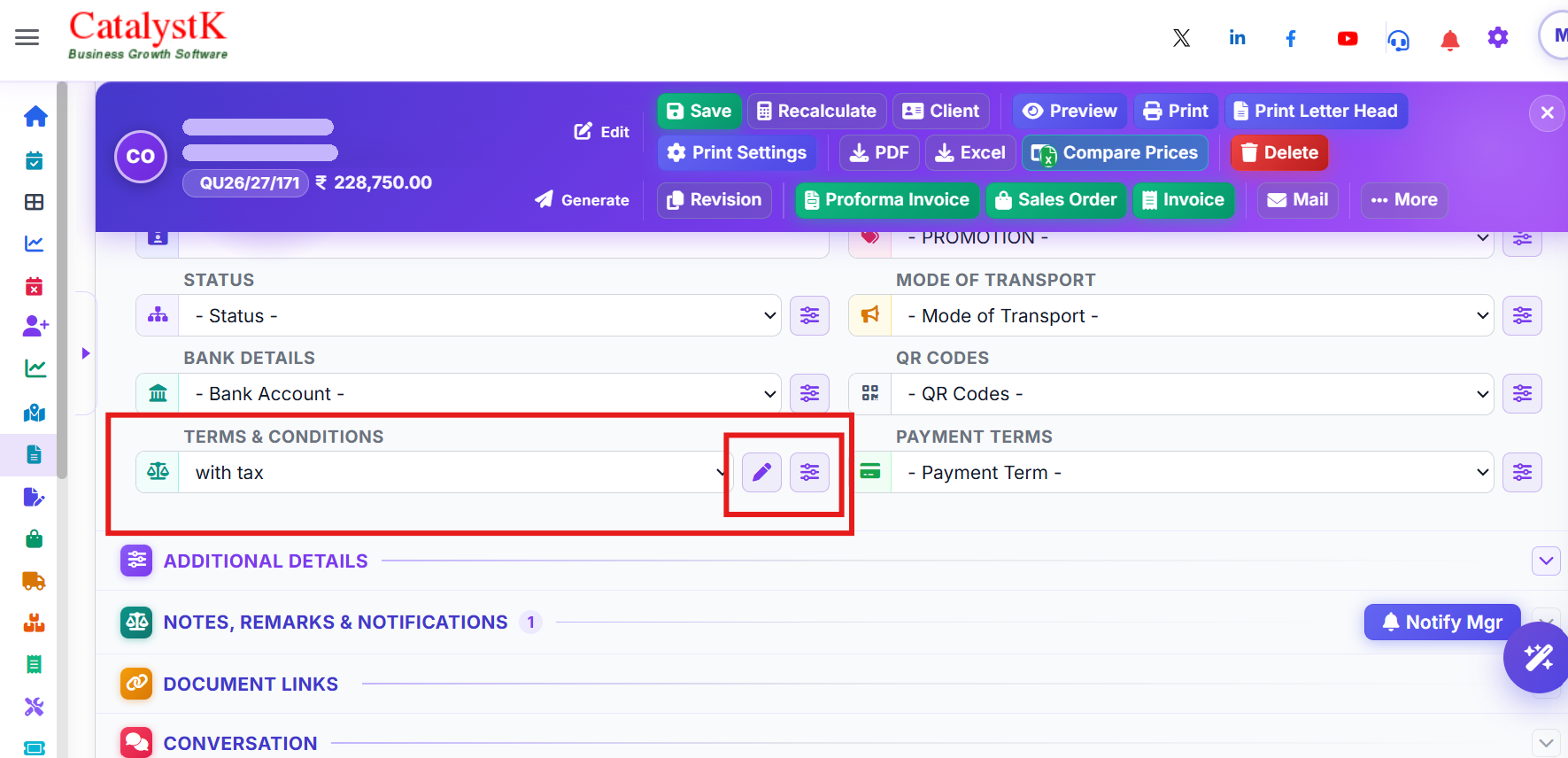
1. Open an existing quotation (or a new one) and scroll to the section Quotation Details.
2. Click the Manage button next to the Terms & Conditions box. The Terms & Conditions dialog opens.
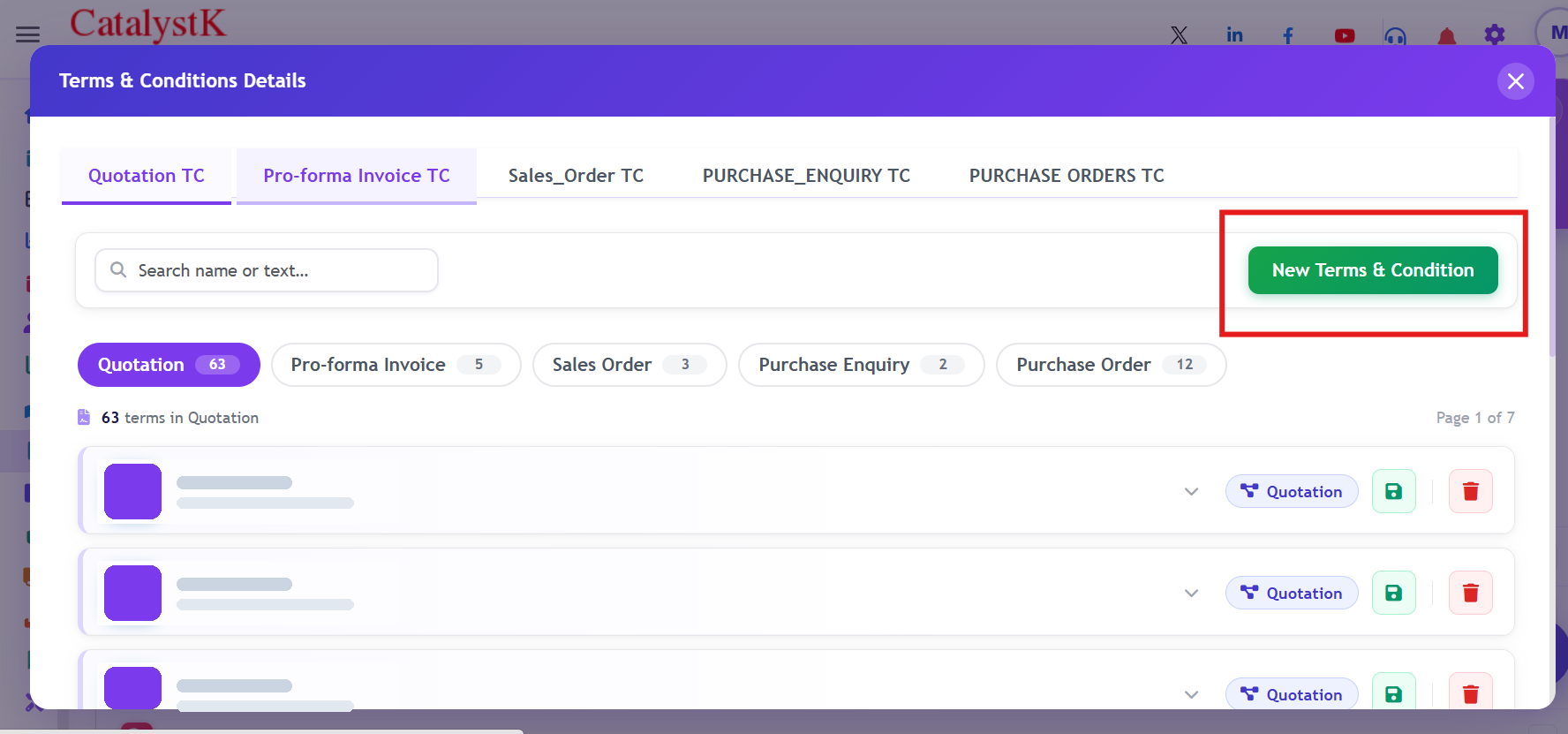
3. Click New Terms & Condition.
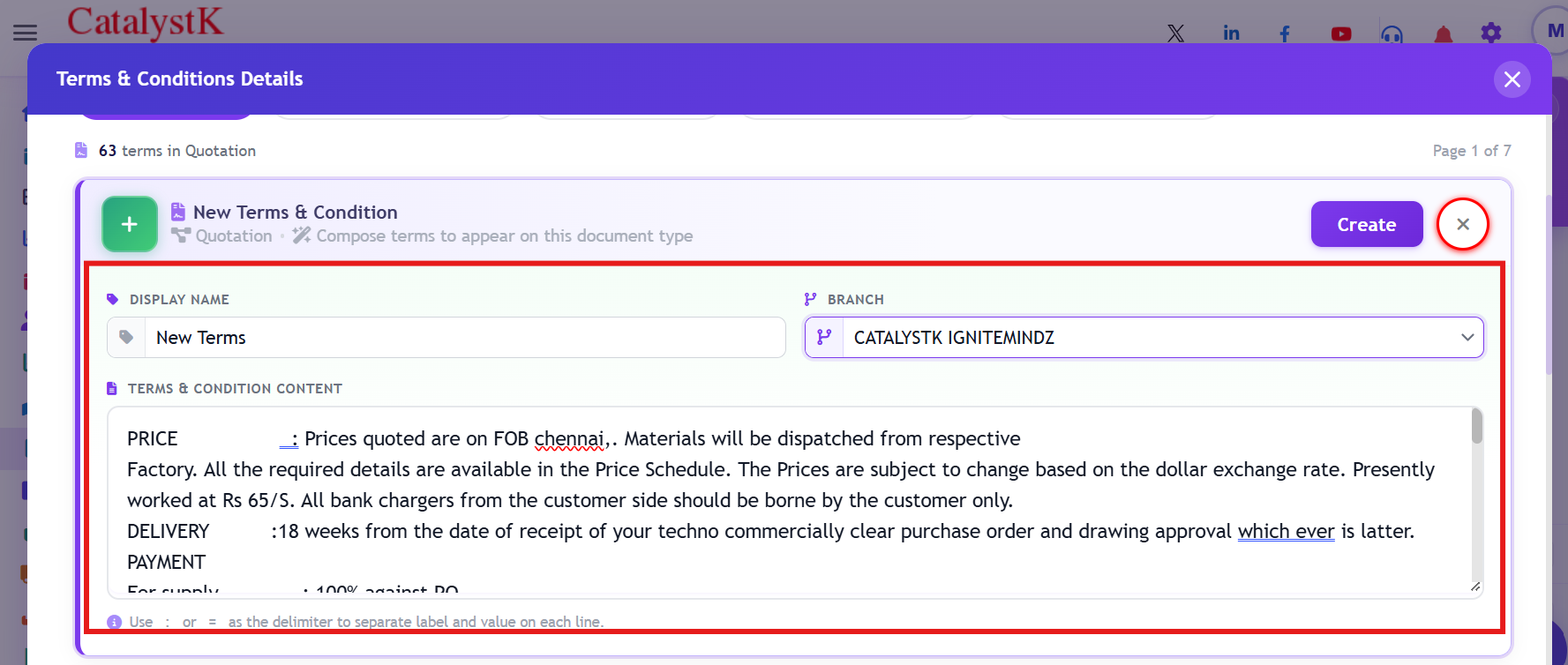
4. Fill in the Name, choose the Branch and enter the terms and conditions, then click Create.
5. The terms and condition is added to the quotation. Click Save.
Steps to edit terms and conditions in quotation:
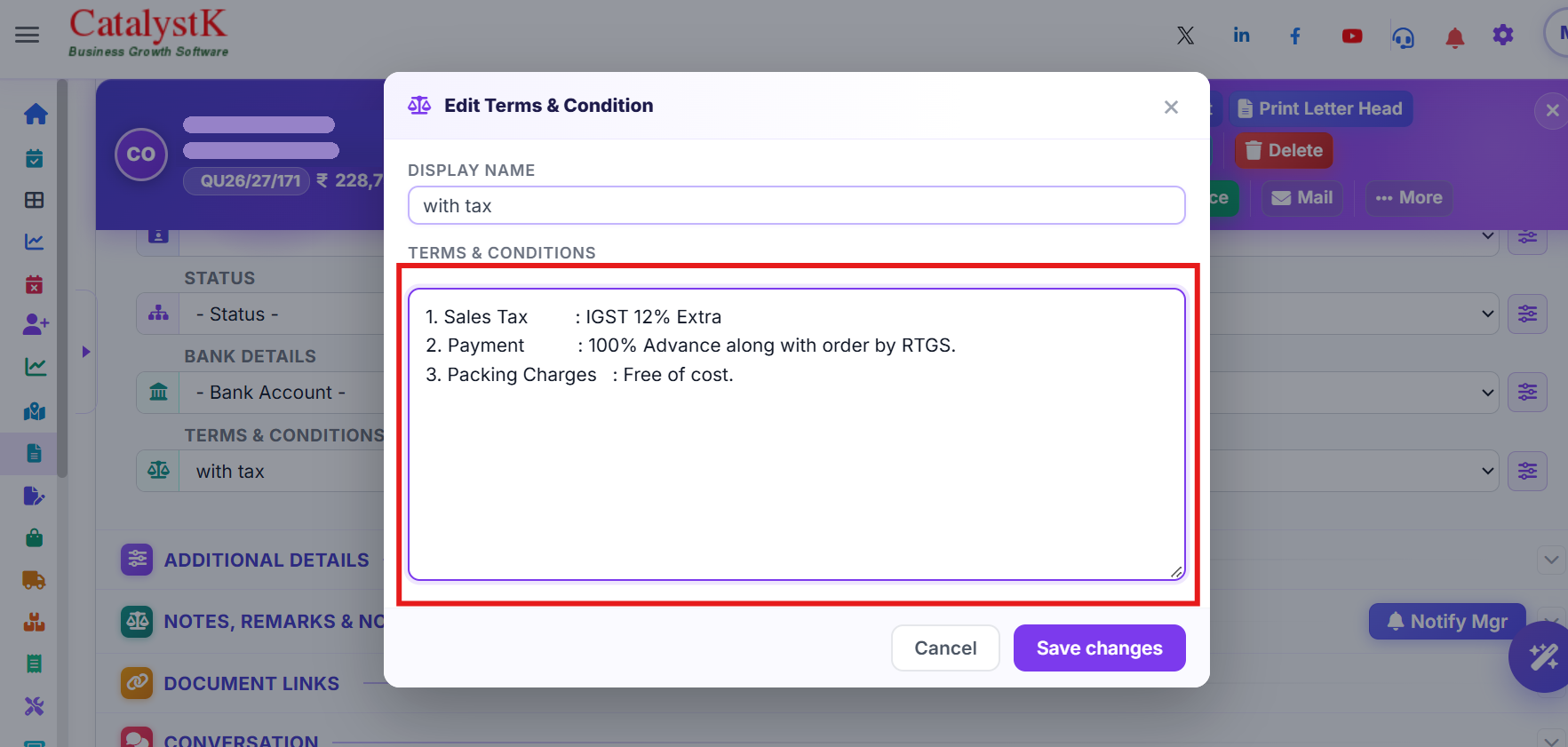
1. Open a new or existing quotation and go to the section Quotation Details.
2. Click the Edit button next to Terms & Conditions.
3. Edit the terms and click Save changes.
How to write payment terms and quotations in quotation?
You can add the N number of payment terms in catalysk, and select in the quotation based on the customer's need.
1. Click "Settings" to open "Payment terms".
2. Click "New payment term" and your terms.
3. Now click the "Save" button to save the payment terms.
4. Select the particular payment terms in the quotation.
5. Use the "Quotation no" field to geneate the exact module of the same quotation.
Catalystk add terms and conditions for quotation to understanding their duties, rights, roles and responsibilities.
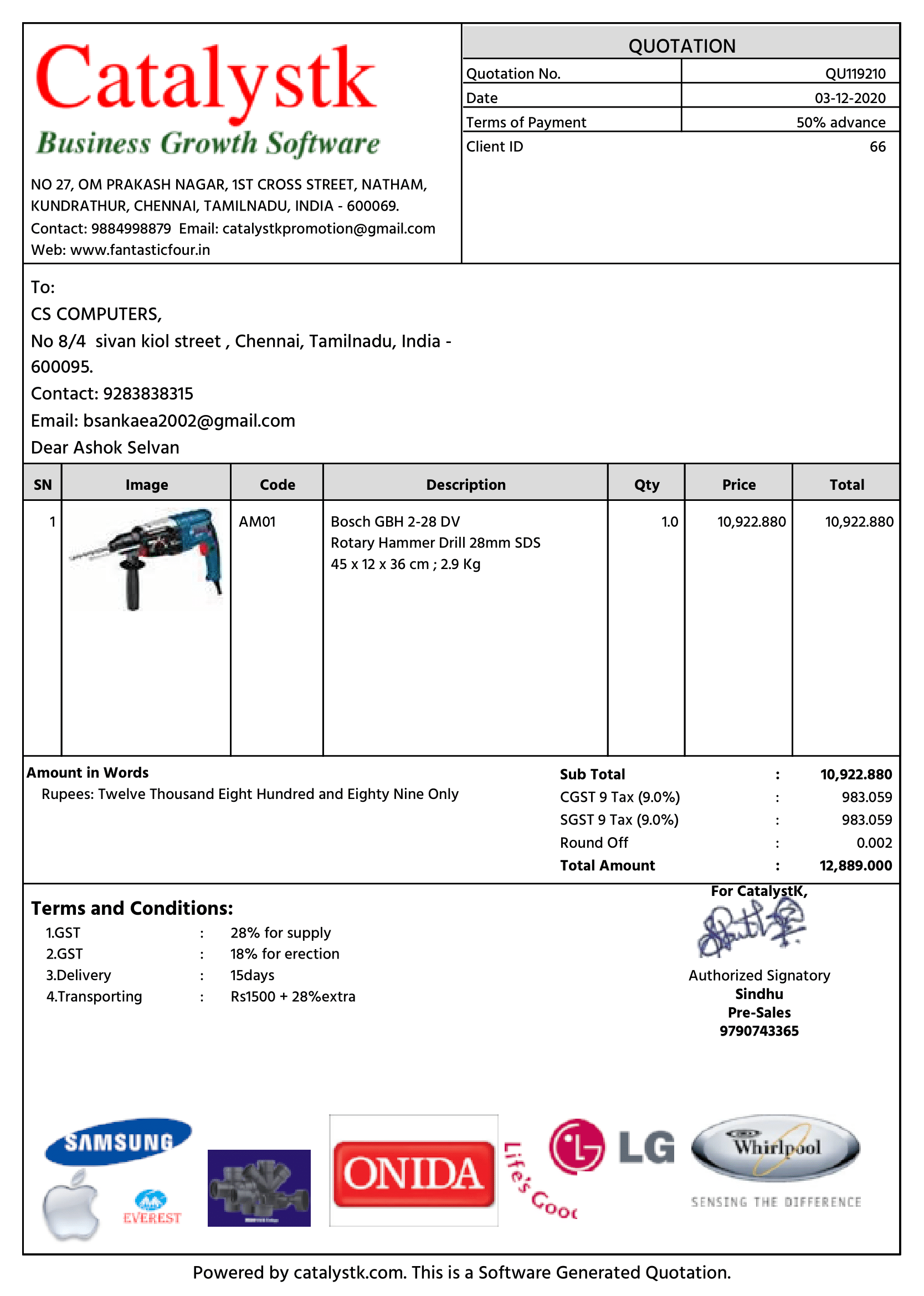
The quotation terms and conditions example is integrated with conditions of quotation CRM and inventory management software to simplify the quotation condition creation process. It provides tools to upload customer and product data to generate quotations within seconds.The quoting application makes the quotation tracking process easier wherein you can set reminders to followup quotes, record quotation status, and get a detailed report of the quotes shared, approved, and not approved, thereby simplifying the sales workflow.
Add terms and conditions for quotation features:
- Quotation with images
- Multiple terms and conditions
- Quotation grouping products
- Revised Quotation
- Quotation without image
- Email Quotation
- SMS Quotation
- Quotation Follow-ups
- missed quotation follow-ups
- Proforma Invoice
- Sales Order
- DC
- Invoice
- Sales Projections
- Sales achievements
- Automated Sales Order, Invoice mailing system
- Deals management
- Task management
- Leads management
- Return Received
- HSN Code
- GST Calculations
- Finance management
- General Ledger
- Client Ledger
- Supplier Ledger
- Pending Payments
- Balance Sheet
- Profit and Loss
- Sales management
- Procurement Management
- Purchase Enquiry
- Vendor Identification
- Purchase Order
- Goods Received Note
- Goods Return
- Purchase Invoice Verification
- Purchase Invoice
- Pending Purchase
- Sales Work Flow
- Manufacturing
- Bill of Materials
- MRP(Planning)
- Job Work / Job Order
- Work Order
- Manufacturing process
- Grouping
- Follow Up
- Excel Uploads
- Excel Download
- Reports
Catalystk add terms and conditions for quotation is a complete sales software integrated with CRM, inventory, and billing features to enhance sales process.
The terms and conditions of quotation and terms and conditions in quotation is embedded with good followup features which quotation terms and conditions serve as a reminder to keep track of all the existing and newly revised quotations. The sales quotation format provided by Catalystk software allows you to retrieve 500+ quotation reports with an excel download option. You can get customer-wise reports, status-wise reports, daily, weekly, monthly, and yearly quotation reports. The excel reports provide complete details such as the quotation number, date, total value, client details, and quotation status.The software applications provide up to date business reports such as quotation reports, invoice reports, product sales reports, purchase reports, lead reports, and finance reports.
Terms and Conditions in Quotation — FAQs
How do I add terms and conditions in a quotation?
Open the quotation, go to Quotation Details and click Manage, then New Terms & Condition. Enter the name, branch and terms, click Create, then click Save.
Can I save multiple terms and conditions and reuse them?
Yes. Create as many sets of terms and conditions as you need, and pick the right one for each client with a single click.
How do I edit terms and conditions in a quotation?
Click Edit next to Terms & Conditions in Quotation Details, update the text and click Save changes.
Can each branch have its own terms and conditions?
Yes. Choose the branch when you create the terms and conditions.
How do I add payment terms to a quotation?
Go to Settings, open Payment terms, click New payment term and Save. Then select the payment term in the quotation.
Are quotation terms and conditions free in Catalystk?
Yes. Adding unlimited terms and conditions and payment terms to quotations is fully free.