
Add a New Product While Creating a Quotation, Invoice or Purchase Order
Never stop a quote halfway because an item is missing from your catalogue. In Catalystk you can create a product straight from the line items of any sales or purchase document — in seconds with Quick Add, or with every detail using Full Product.
- Quotation
- Proforma Invoice
- Sales Order
- Invoice
- Purchase Request
- Purchase Order
- GRN
- Purchase Invoice
Create a product without leaving the document
The same four steps work in every document that has line items.
- 1
Open a new document
Start a new quotation, proforma invoice, sales order, invoice, purchase request, purchase order, GRN or purchase invoice. The line items grid is the same in every one of them.
- 2
Type the product name in Item Name / Spec
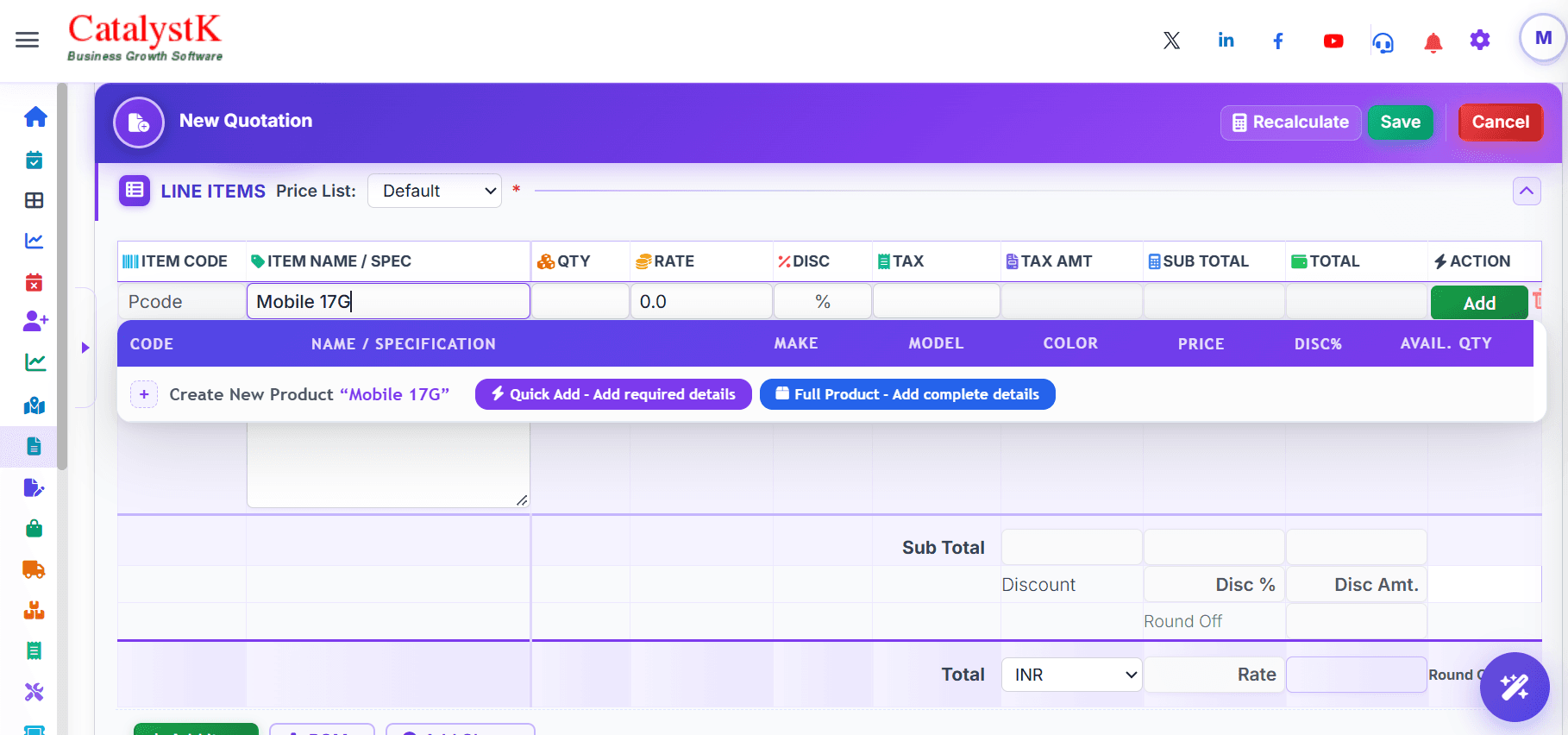
Catalystk searches your product catalogue as you type and lists matches with code, make, model, color, price, discount and available quantity.
- 3
No match? Look for “Create New Product”
When nothing in your catalogue matches, the search panel offers to create the product using exactly the name you typed — no need to leave the document.
- 4
Choose Quick Add or Full Product
Pick Quick Add to capture just the selling details inline, or Full Product to open the complete product form with inventory details.
Quick Add — required details, right in the line item
Choose Quick Add – Add required details and the row expands with the fields you need to quote or bill the item. Nothing pops up, so you keep your place in the document.
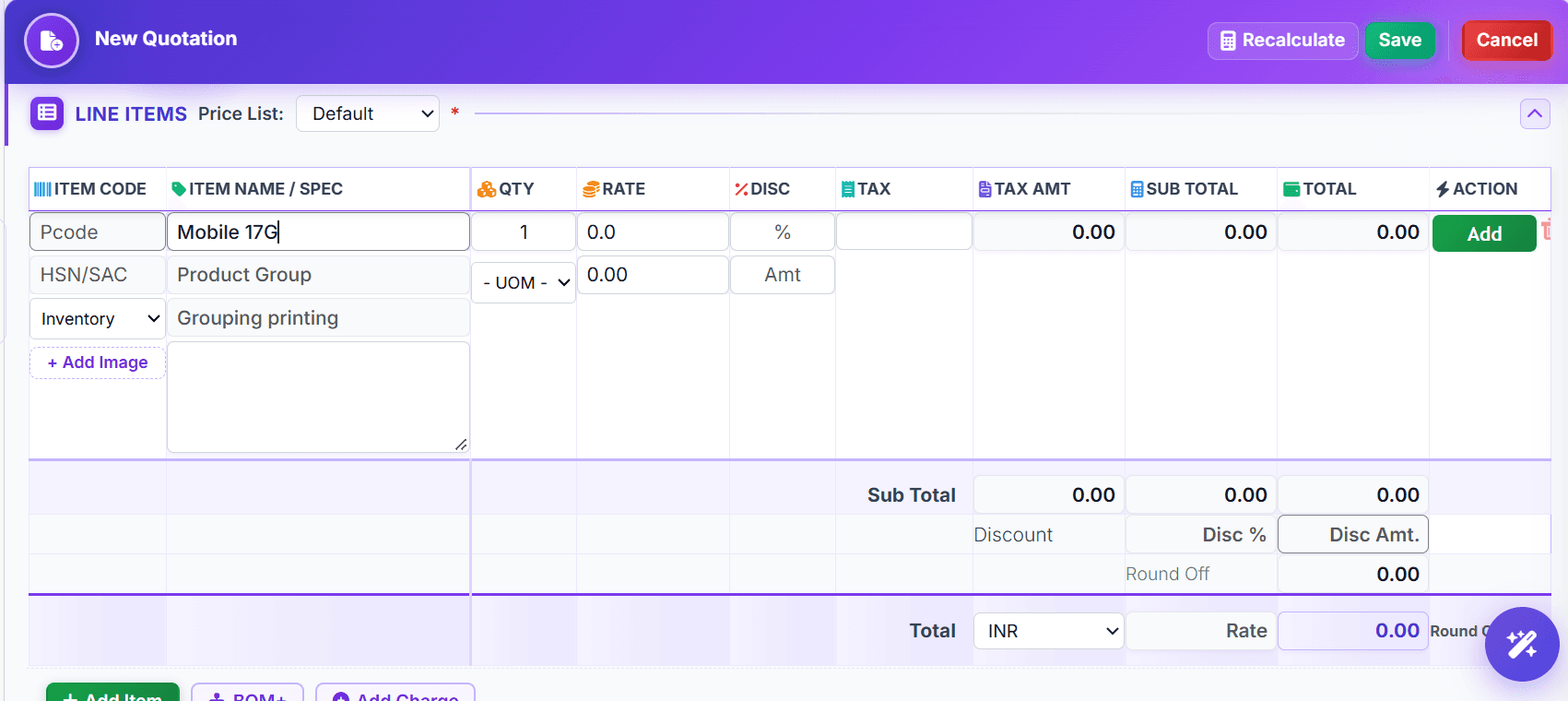
Fields you can fill inline
- Item code — Your own product code (Pcode) or SKU.
- Item name & specification — Pre-filled with what you typed; add specs in the description box below.
- HSN / SAC — Tax classification code used on GST documents.
- Product group — Keeps similar items together for reports and grouped printing.
- Product type — Inventory, service or raw material.
- Quantity & UOM — Quantity defaults to 1; pick the unit of measurement from the list.
- Rate — Selling or buying price for this line.
- Discount — Enter it as a percentage or a flat amount.
- Tax — Choose the tax rate; tax amount and totals calculate automatically.
- Product image — Use + Add Image to attach a picture that prints with the document.
Save once, create both. When you click Save on the quotation (or any other document), Catalystk saves the document and creates the new product in your catalogue with every detail you entered — ready to search the next time.
Full Product — the complete product record, inventory included
Choose Full Product – Add complete details to open the New Inventory Product dialog over your document. It is the same form as Product Master, so the item is fully set up for stock tracking from day one.
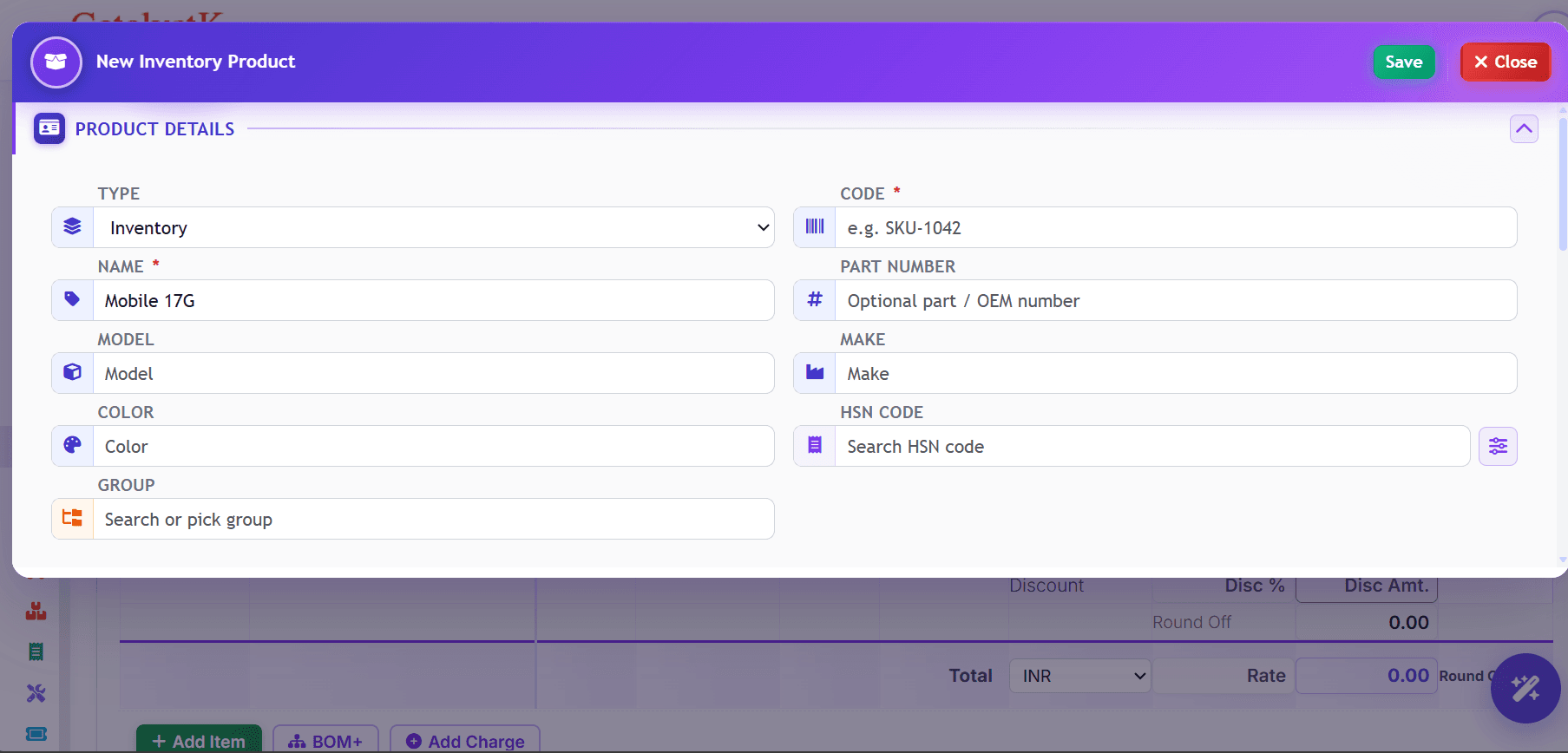
What you can record
- Name(required) — Carried over from the line item.
- Code(required) — A unique SKU, e.g. SKU-1042.
- Type — Inventory, service or raw material.
- Part number — Optional part or OEM number.
- Model & make — Model name and manufacturer or brand.
- Color — Useful when the same item comes in several variants.
- HSN code — Search the HSN list or use the filter to narrow it down.
- Group — Search for an existing group or pick one.
- Pricing & tax — Price, UOM, discount and tax details.
- Inventory details — Stock and other inventory settings for tracked items.
- Image & other fields — Product picture plus any optional fields you want on record.
Click Save in the dialog to create the product and drop it into the line item, or Close to return to the document without creating it.
Quick Add vs Full Product
| Quick Add | Full Product | |
|---|---|---|
| Where it opens | Inline, inside the line item | A separate dialog over the document |
| Time to add | A few seconds | A minute or two |
| Fields covered | Code, name, HSN/SAC, group, type, UOM, qty, rate, discount, tax, image | Everything in Quick Add plus part number, make, model, color and other optional fields |
| Inventory details | Not captured — add later in Product Master | Captured while creating the product |
| When it's saved | When you save the document | When you click Save in the dialog |
| Best for | One-off items and quick quotes during a sales call | Stocked items you will buy, sell and track again |
Get it right the first time
- Search HSN codes by product description instead of typing the number — it avoids tax errors on GST invoices.
- Choose the correct UOM (Nos, Kg, Box, Metre…) the first time; it carries into every future document using the product.
- Select the right Price List before adding items so the rate you enter is saved against the correct list.
- Use Quick Add while you are on a call with a customer and complete the remaining details later in Product Master.
- Give every product a clear code — it makes searching in the line items grid much faster next time.
Frequently asked questions
Which documents let me create a product from the line items?
Quotation, proforma invoice, sales order, invoice, purchase request, purchase order, GRN (goods receipt note) and purchase invoice all use the same line items grid, so Quick Add and Full Product work in each of them.
When is a product added with Quick Add actually created?
Quick Add products are created when you save the document. Once saved, the product appears in Product Master and can be searched in any future document.
What happens to a Quick Add product if I cancel the quotation?
If you cancel without saving the document, the Quick Add product is not created, so your catalogue stays clean.
Can I add inventory details to a Quick Add product later?
Yes. Open the product in Product Master at any time to add stock, inventory settings and any other optional fields.
Which fields are mandatory in the Full Product form?
Only the product code and name are mandatory. Type, part number, model, make, color, HSN code, group, pricing, tax, inventory details and image are optional.
Is the name I typed carried into the new product?
Yes. Both Quick Add and Full Product start with the name you typed in Item Name / Spec, so you never type it twice.
Does creating a product this way cost anything?
No. Creating products from documents is part of Catalystk's free plan, with no limit on the number of products.
Ready to run your business on one platform?
Join thousands of growing businesses using Catalystk. Set up in minutes — free forever, no credit card required.